WhatsApp chat export: what the file holds

Founder
A WhatsApp chat export is a copy of one conversation as a text file, with the messages in the order they were sent. It is not a customer list, and it is not a backup: Meta describes the file as a text file that cannot be imported back into WhatsApp. If what you need is a searchable list of customers and orders, the export is the wrong tool, because the file has no customer, product, or amount columns.
Meta's export is still useful for keeping one important conversation. This guide shows the steps on both phones, what the file actually holds, and where sellers get stuck when they try to turn a transcript into a customer record.
Export a chat from the phone
Meta's help center documents the export on Android and iPhone. It works one chat at a time, and the steps differ slightly.
On Android:
- Open the individual or group chat.
- Tap the three dots in the corner, then More, then Export chat.
- Choose Include media or Without media.
- Pick where the file goes, such as Drive, Files, or an email to yourself.
On iPhone:
- Open the chat, then tap the contact name or the group name.
- Tap Export chat.
- Choose With all media, With selected media, or Without media.
- Save to Files, or send it somewhere you can open it.
On iPhone the export arrives as a ZIP. On Android the text file and the media can arrive separately. Either way it is a readable copy, not something WhatsApp can read back.
Two limits decide whether the export can be part of your record keeping:
- One chat per export. There is no select-all. A customer list built this way means one file for every customer.
- The most recent media only. With media on, Meta's help says the export adds the most recent media in the chat, not every file. View-once messages are left out.
Tools that promise every chat in one click are reading WhatsApp Web for you. They are not Meta's export, and they still produce files rather than fields.
What the file actually holds
Open the text file in any editor and you get one line per message: a sender name, a date and time, and the text. That is enough to read the conversation and to settle a question about what was said. It is not enough to run a shop.
What is missing from every export:
- No customer column. The name in the file is whatever you saved the contact as, and the phone number is not always included.
- No order fields. There is no product, quantity, price, address, or payment status. An order in chat is a sentence someone has to interpret.
- No link between chats. A customer who orders twice appears in two files with no shared ID, so repeats are counted by hand.
- No cross-file search. You open and search one export at a time.
- No media guarantee. The newest attachments are there, older ones may not be, and view-once messages are gone.
A transcript is evidence of a conversation. A record is a set of fields you can filter.
Where sellers get stuck
Two months in, most sellers have a folder of exports they never open. Turning those files into a list is manual work: open each one, find each order, retype the number, the item, and the date. Sixty chats is an afternoon, and the next order starts a new file.
Counting repeat customers is worse. You match numbers across files by hand, and the name in the export may not be the number you saved. A customer who changes their display name looks like a new person.
Sharing the file has the problem in reverse. It contains the whole conversation, including anything personal the customer sent. Send an order summary when the conversation is not the point.
When the export is the right tool
Keep the export for the conversation, not for the list. It earns its place when you need:
- A delivery instruction you may have to quote back.
- A dispute about what was agreed, kept with the date.
- A quote or a specification sent in chat, saved to the job folder.
- One conversation you need on a computer.
Those are all single-chat jobs, which is exactly what the export does well.
Turn an order into a row, not a transcript
A form asks for the fields once, in the same order, for every customer. Each response becomes one row with the number, the item, the quantity, the delivery or pickup choice, the date, and a note. The row survives a new phone, a cleared chat, and a customer who renames their profile.
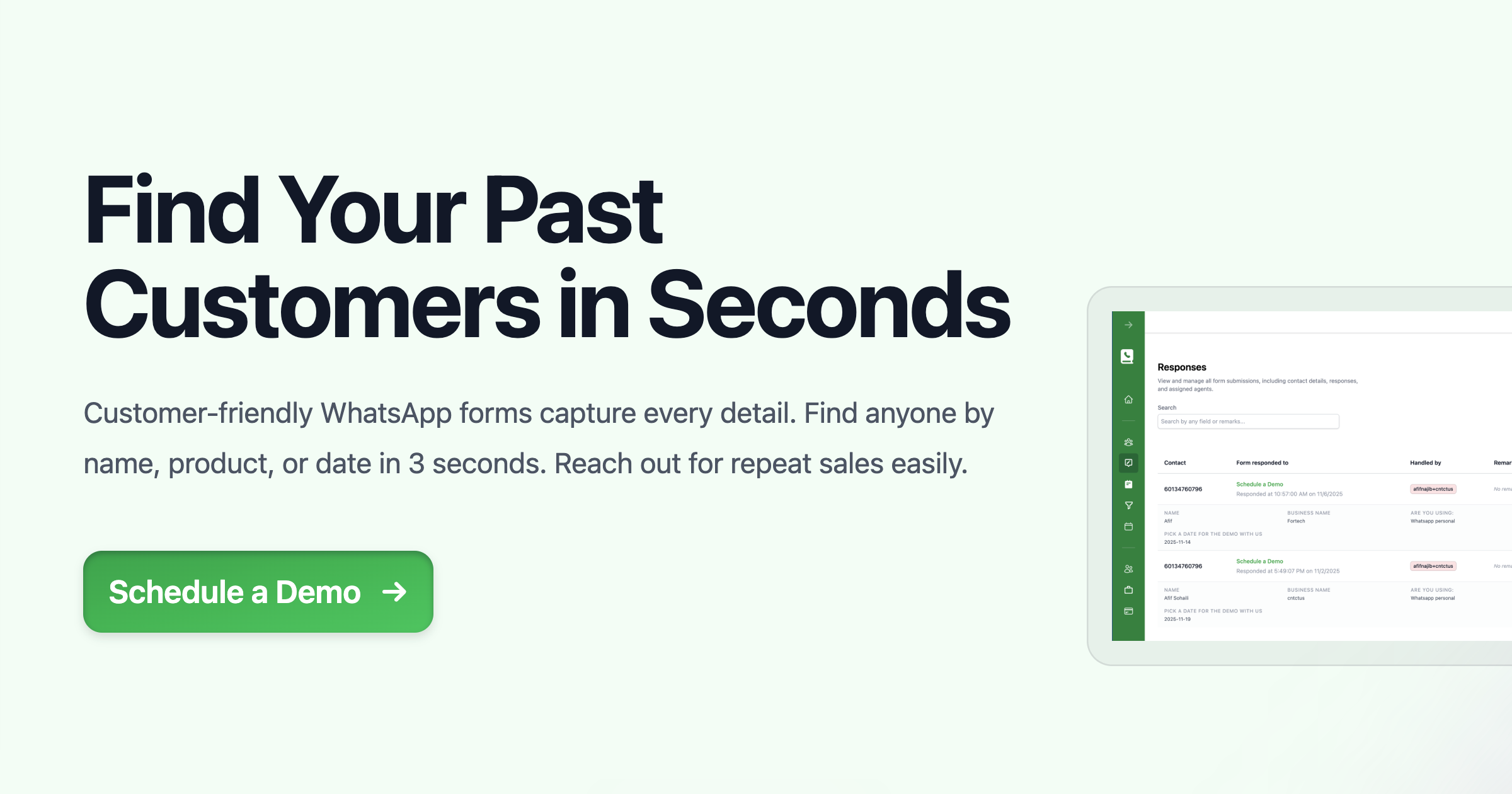
WhatsApp forms run on the number you already use. The customer fills in the details once, the chat opens as usual, and the response lands in a dashboard outside WhatsApp. The same records export to CSV, so the list is not trapped in the tool.
Three habits make the record useful:
- Ask on the first order. The fields are easiest to collect while the customer is already typing.
- Keep the chat as the conversation. The form answers where the order details live.
- Check the record before the follow-up. Search the number, see what they bought, and message from there instead of scrolling.
If you sell services, the same form works with a booking time instead of a delivery slot. The service-business guide walks through that version, and build a customer database covers the fields worth keeping.
A simple split that works
- WhatsApp holds the conversation.
- The form record holds the order: number, item, date, amount, address.
- The export holds a copy of a conversation you may need later.
That split answers both questions, what was said and who bought what, without asking one file to do both jobs.
Frequently asked questions
How do I export a WhatsApp chat?
On Android, open the chat, tap the three dots, tap More, then Export chat, and choose whether to include media. On iPhone, open the chat, tap the contact or group name, tap Export chat, then choose With all media or Without media. Pick where to send the file.
Does a WhatsApp export include photos and voice notes?
Only if you choose the media option, and Meta's help says the export adds the most recent media in the chat rather than every file. View-once messages are not exported. Save the individual photos you need as well.
Can I export all my WhatsApp chats at once?
No. Meta's export works one chat at a time, so a shop with sixty customers produces sixty files. Backing up chats is a separate feature and does not give you a spreadsheet either.
Can I import an exported chat back into WhatsApp?
No. Meta describes the export as a text file, not a backup file, so it cannot be restored into the app. Use the backup feature for moving chats to a new phone.
Can I turn a WhatsApp export into a customer list?
Not directly. The file is a transcript with no customer, product, or amount columns, and each chat arrives separately. A form records those fields as rows from the first order, and the dashboard exports them to CSV.